 roamdeck
Your Windows PC.
In your pocket.
RoamDeck links your Android phone to your PC: drive real terminals, dictate commands, move files and watch the screen. Direct end-to-end encrypted connection — on LAN or 4G — no account, nothing to configure.
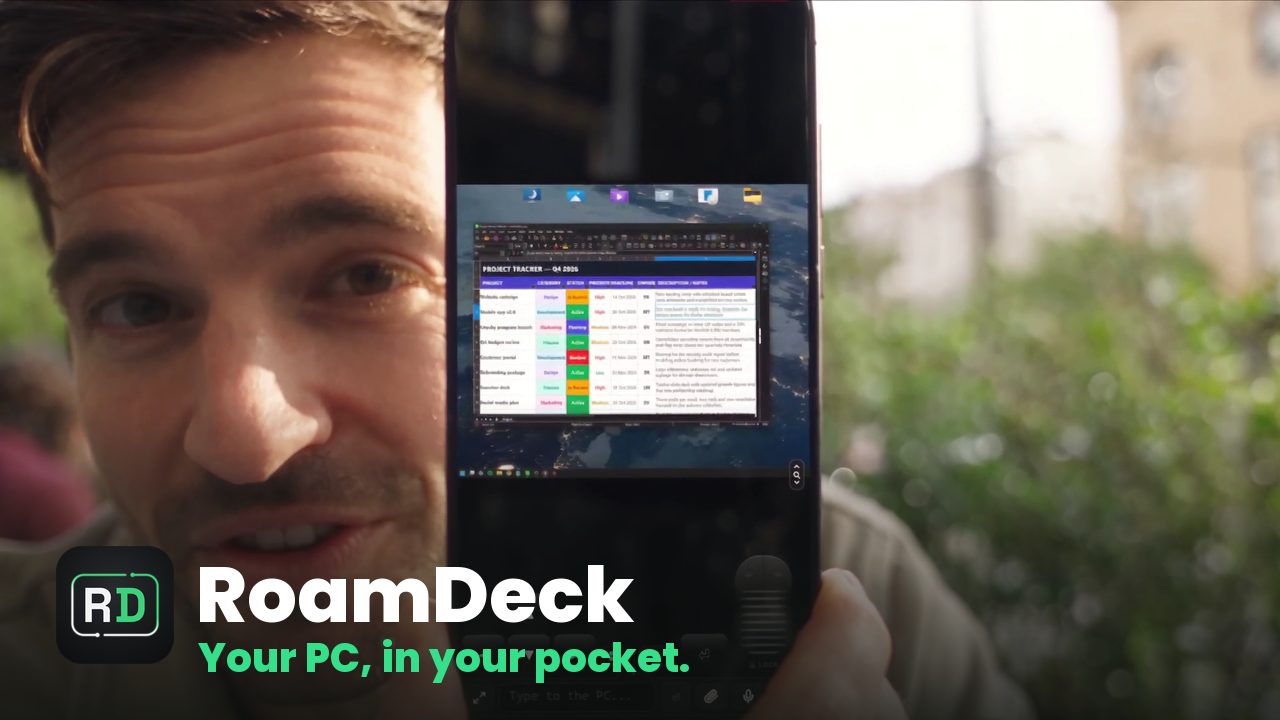
See it in action.
Not another remote desktop.
Real terminals
No fake shells: RoamDeck opens and drives real terminal windows on your PC. What you type on the phone really happens there, in the same session you see at your desk.
Voice dictationPRO · WHISPER
Dictate commands and text. With Pro, transcription runs with Whisper on YOUR PC: audio never touches any cloud.
File transferPRO
Photos, APKs, logs: back and forth between phone and PC over the direct encrypted channel — no cloud, no cables.
Full screen & input
Watch your monitors in real time (WebRTC), move the mouse, type, zoom. Designed for one-handed use.
End-to-end encrypted, P2P
Phone and PC talk directly. The rendezvous server only makes the introductions: screen, keys and files never cross our servers in the clear.
Zero config
Install the server on the PC, scan the QR from your phone, done. On LAN they find each other; away from home it works on 4G/5G with no port forwarding.
Three steps, no manual.
Install on the PC
Download RoamDeck Server and install it: it lives in the Windows tray and starts on its own.
Scan the QR
Scan the QR shown by the PC with your phone: pairing happens once, then they recognize each other.
Control from anywhere
At home on LAN, outside on 4G: same app, same session. Direct E2E connection, no account.
Free to start. Pro to work.
Free
€0
- 1 paired PC
- 1 terminal opened from the app
- Full screen, mouse and keyboard
- On-device voice dictation
- Remote 4G/5G access (basic relay)
- File transfer
- PC audio streaming
Pro
Monthly
€4.99/month
month to month
Yearly
€39.99/year
€3.33 a month, −33%
- Unlimited PCs and terminals
- Encrypted file transfer
- PC audio streaming
- Voice with Whisper on your PC
- Full-speed remote relay
Activate it in the Android app, through Google Play. Cancel anytime.
Your data stays yours.
No accounts, no analytics, no content on our servers: screen, keys, files and voice travel end-to-end encrypted between YOUR phone and YOUR PC. It's the reason RoamDeck exists.
No ads, no tracking: we never collect or sell your data to third parties. Of any kind, ever.
Frequently asked questions
The PC is asleep and I can't reach it
A sleeping PC runs no programs, so no app can reach it. While you're connected, RoamDeck keeps it awake. To keep it always reachable: on the PC, RoamDeck icon next to the clock → “Keep the PC reachable”, or Settings → System → Power → Sleep: “Never”.
How do I turn the PC on from the phone?
If the PC shows as off, tap ⋯ on its card → “Turn on the PC”. The phone must be on the PC's home network. The button appears after you've connected to the PC at least once.
The “Turn on” button does nothing
Check in this order: 1) the phone is on the home Wi-Fi, not on 4G; 2) the PC uses a network cable (it rarely wakes over Wi-Fi); 3) “Wake on LAN” is enabled in the BIOS/UEFI; 4) in Device Manager → network adapter → Power Management, “Allow this device to wake the computer” is checked, and under Advanced “Wake on Magic Packet” is enabled; 5) to turn it on from shutdown, not just from sleep, turn off fast startup: Control Panel → Power Options → “Choose what the power buttons do”.
Can I turn it on when I'm away from home?
The phone can't do it alone: the wake signal only travels on the home network, so from outside you need something at home that's on to send it for you. Many routers can: on a FRITZ!Box, in its web page or the MyFRITZ! app, open the PC among the home network devices and use “Start computer”; ASUS routers have “Wake on LAN” in the ASUS Router app. For others, look for “Wake on LAN” in the router's app or web page. The PC needs the same settings as for the “Turn on” button.
After waking up, Windows asks for a PIN or password
Not yet: Windows shows the sign-in on a protected desktop that no app can see or control. To find the desktop already unlocked: Settings → Accounts → Sign-in options → “If you've been away…” → “Never”. Keep in mind that anyone at the PC will find it unlocked too.
The laptop goes to sleep when I close the lid
That's a Windows choice and RoamDeck doesn't block it. To use it closed: Control Panel → Power Options → “Choose what closing the lid does” → Plugged in: “Do nothing”.